Strickland Propane TeamSpeak
The official place to talk shit, coordinate, and hear the callouts without Discord getting in the way.
Why TeamSpeak
We stick with TeamSpeak because it just plain works better. It's lighter on system resources, delivers crystal-clear voice quality, and doesn't screw with your other audio settings like Discord tends to do. On top of that, we host it ourselves, which means we own everything — client list, server chats, and shared files... you name it — not some corporation mining your info.
Plus, let's be honest… we're old-school gamers. We've been running on TeamSpeak for decades, and we're not about to ditch something that's rock-solid just because the internet got trendy.
Rules
We don't really do rules around here. Just don't be a jackass!
Don't ruin the fun for everyone else, and you'll fit right in. Strickland's been running smooth for years without moderators breathing down people's necks — let's keep it that way.
Connection Details
- Server Name Strickland Propane
- Server IP 45.76.238.226 copy
- Password Pr0pane! (the 0 is a zero) copy
Client Downloads
Grab the official client for your platform, connect to the server, punch in the password, and you are good to go.
First-Time Setup
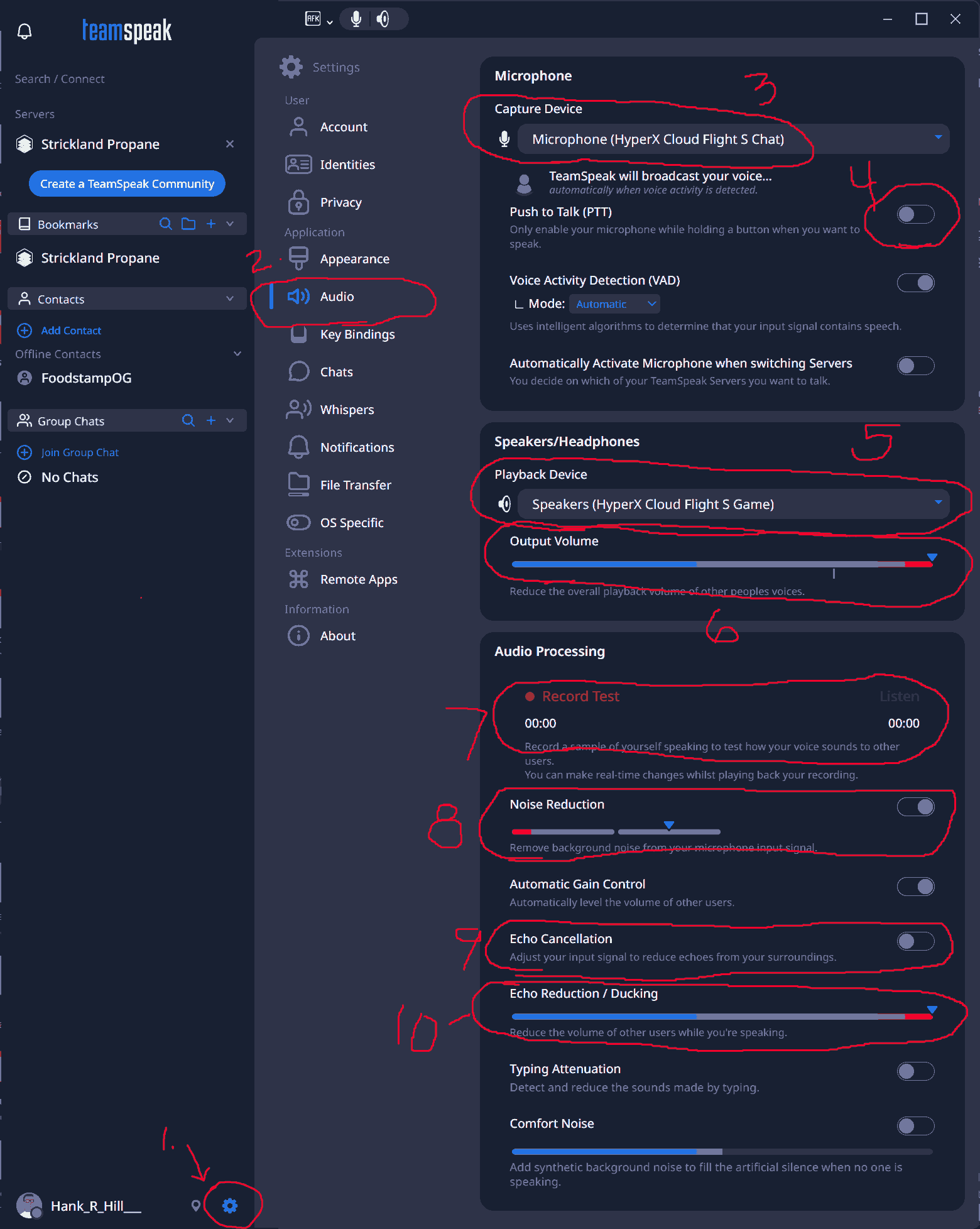
For the best experience, check these settings the first time you launch TeamSpeak. The screenshot below matches the steps.
Tip: you can right-click any user and adjust their volume individually if someone is too quiet or too damn loud.